how to burn dvd to external hard drive
In this comprehensive guide, we will walk you through the essential hardware requirements—including choosing the right external dvd burner drive—and the best software to ensure a high-quality digital backup.
Why Should You Transfer Your DVDs to an External Hard Drive?
Physical discs are prone to "disc rot," scratches, and physical damage. By moving your library to a hard drive, you gain:
-
Portability: Carry thousands of movies in one pocket-sized device.
-
Longevity: Protect your content from physical wear and tear.
-
Convenience: Play your media directly on smart TVs, tablets, or laptops without a disc slot.
Phase 1: Essential Hardware – The External DVD Burner Drive
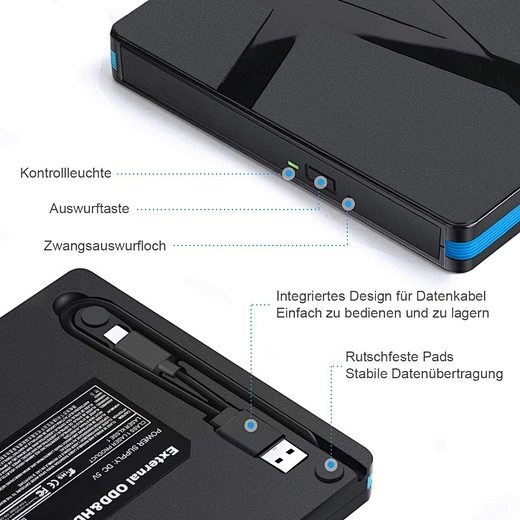
Most modern PCs and MacBooks no longer come with built-in optical drives. To start the process, you will need a reliable external dvd burner drive.
When shopping for an external dvd burner drive, consider the following:
-
Interface: Look for USB 3.0 or USB-C compatibility for faster data transfer speeds.
-
Compatibility: Ensure it supports both Windows and macOS.
-
Read/Write Speeds: A drive with at least 8x DVD read speed is recommended for efficiency.
Phase 2: How to Burn DVD to External Hard Drive (Step-by-Step)
Technically, "burning" a DVD to a hard drive is often referred to as "ripping." Here is the most efficient workflow to get it done:
Step 1: Connect Your Hardware
Plug your external dvd burner drive into your computer’s USB port. Then, connect your destination external hard drive. Ensure the hard drive has enough storage space (a standard DVD requires 4.7GB to 9GB).

Step 2: Choose the Right Software
To bypass encryption and convert the video format, you need reliable software. Popular choices include:
-
Handbrake: A free, open-source transcoder ideal for MP4/MKV files.
-
MakeMKV: Best for preserving the original quality in MKV format.
-
VLC Media Player: A versatile tool that also offers basic ripping features.
Step 3: Configure the Output Settings
Once you’ve inserted the disc into the external dvd burner drive, open your chosen software.
-
Destination: Set the output folder directly to your external hard drive.
-
Format: Choose MP4 (H.264) for maximum compatibility with all devices, or MKV if you want to keep all subtitle tracks and audio channels.
Step 4: Start the Process
Click "Start" or "Convert." The time it takes to how to burn DVD to external hard drive depends on the speed of your drive and the CPU of your computer. Usually, it takes between 15 to 45 minutes per disc.
Common Troubleshooting Tips
-
Disc Not Recognized: Clean the DVD surface with a microfiber cloth and ensure the external dvd burner drive is getting enough power (some require two USB ports).
-
Copyright Protections: Some commercial DVDs have CSS encryption. Ensure your software is equipped to handle legal backups of your own purchased media.
Frequently Asked Questions (FAQs)
Can I burn a DVD to an external hard drive without software?
No, you cannot simply "copy and paste" files from a video DVD to a hard drive because of the file structure (VOB files) and encryption. You need a ripping tool to convert it into a playable video file.
What is the best format for saving DVDs?
For most users, MP4 is the best balance between file size and video quality.
Final Thoughts
Learning how to burn DVD to external hard drive is the best way to future-proof your media collection. By investing in a quality external dvd burner drive and following the steps above, you can enjoy your favorite films anytime, anywhere.
who invented selfie stick
what is the best external dvd drive for mac
Related Article