How to Use External DVD Drive on Windows 11
How to Use External DVD Drive on Windows 11: A Complete Guide (2024 Updated)
In an era of streaming and cloud storage, many Windows 11 users still rely on physical media for legacy software, high-quality movie collections, or burning backups. However, when you plug in your drive, you might notice that Windows 11 doesn’t automatically start playing your DVD.
If you are wondering how to use an external DVD drive on Windows 11, this guide will walk you through the setup process, the best free software options, and troubleshooting common connection issues.

Step 1: Connecting Your External DVD Drive
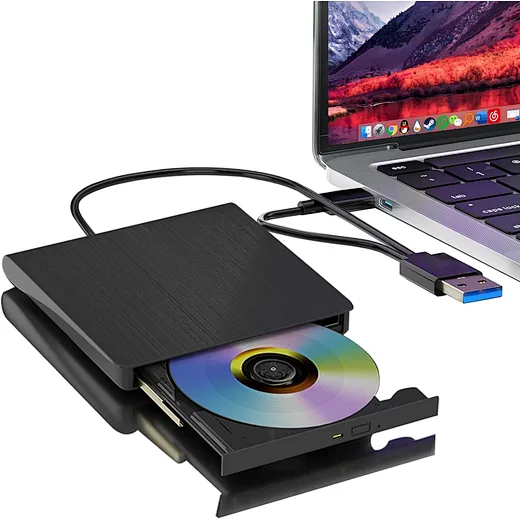
Most modern external DVD/CD-ROM drives are "Plug and Play." Here is how to get started:
-
Plug the USB cable from the drive into a functional USB port on your Windows 11 laptop or PC.
-
Tip: If you are using a desktop, use the USB ports on the back (motherboard) for more stable power.
-
-
Wait for the drivers to install. Windows 11 will typically recognize the device automatically and install the necessary generic drivers.
-
Verify Connection: Open File Explorer (Win + E) and click on "This PC." You should see a "DVD RW Drive" icon under Devices and drives.
Step 2: Why Isn't My DVD Playing? (The Windows 11 Gap)
The most common point of confusion is that Windows 11 does not include a free DVD player app. While the OS recognizes the hardware, it lacks the built-in codecs to decode and play DVD video.
To play your movies, you need to install a third-party media player.
Step 3: Best DVD Player Software for Windows 11
To use your external DVD drive for watching movies, we recommend these top options:
1. VLC Media Player (Top Recommendation - Free)
VLC is an open-source, free player that supports almost every video format, including DVDs.
-
How to use: Open VLC > Click Media > Open Disc > Select your DVD drive > Click Play.
2. Windows DVD Player (Official - Paid)
Microsoft offers an official app in the Microsoft Store. It is reliable but costs around $14.99.
3. Leawo Blu-ray Player (Free)
Excellent for users who need a more modern interface and support for both DVDs and Blu-rays.
Step 4: How to Burn Data or Files to a DVD
If your goal is to burn files to a disc using an external drive, Windows 11 has built-in tools for this:
-
Insert a blank DVD-R/RW into your external drive.
-
Drag and drop the files you want to save into the DVD drive folder in File Explorer.
-
Click on the Drive Tools tab at the top and select Finish burning.
-
Follow the wizard to name your disc and select the burning speed.
Troubleshooting: External DVD Drive Not Working on Windows 11?
If your drive isn't appearing or isn't reading discs, try these SEO-optimized fixes:
-
Update Drivers: Right-click the Start button > Device Manager. Expand DVD/CD-ROM drives, right-click your device, and select Update driver.
-
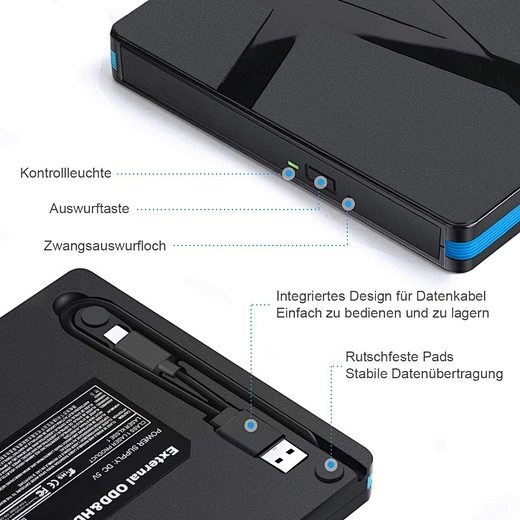
Check Power Supply: Some external drives require a "Y-cable" (two USB plugs) to get enough power from the laptop. Make sure both are plugged in.
-
Assign a Drive Letter: If the drive doesn't show in File Explorer, go to Disk Management, right-click the DVD drive, and select Change Drive Letter and Paths.
-
Check for Physical Locks: Ensure the disc is seated correctly on the spindle.
Final Verdict
Using an external DVD drive on Windows 11 is easy once you realize that the software is the missing piece of the puzzle. Simply plug in your hardware, download a free tool like VLC Media Player, and you’ll be able to enjoy your physical media in seconds.
FAQ: Frequently Asked Questions
Q1: Does Windows 11 support external DVD drives?
Yes, Windows 11 supports external DVD and Blu-ray drives, but you need third-party software to play video DVDs.
Q2: Why is my external DVD drive not showing up in Windows 11?
This is often due to power issues, faulty USB ports, or outdated drivers in Device Manager.
Q3: Can I play Blu-ray discs with a standard external DVD drive?
No, you need a specific External Blu-ray Drive hardware and Blu-ray player software (like Leawo or CyberLink PowerDVD) to play Blu-ray discs.
What is an Optical Drive
can you use external optical drive to download windows
Related Article