can you install software from an external cd drive
A common question arises: Can you install software from an external CD drive? The short answer is yes—and it’s a straightforward process for most operating systems. Whether you’re using a laptop without a built-in optical drive or a desktop needing extra flexibility, an external CD drive is a reliable solution for installing software from discs.
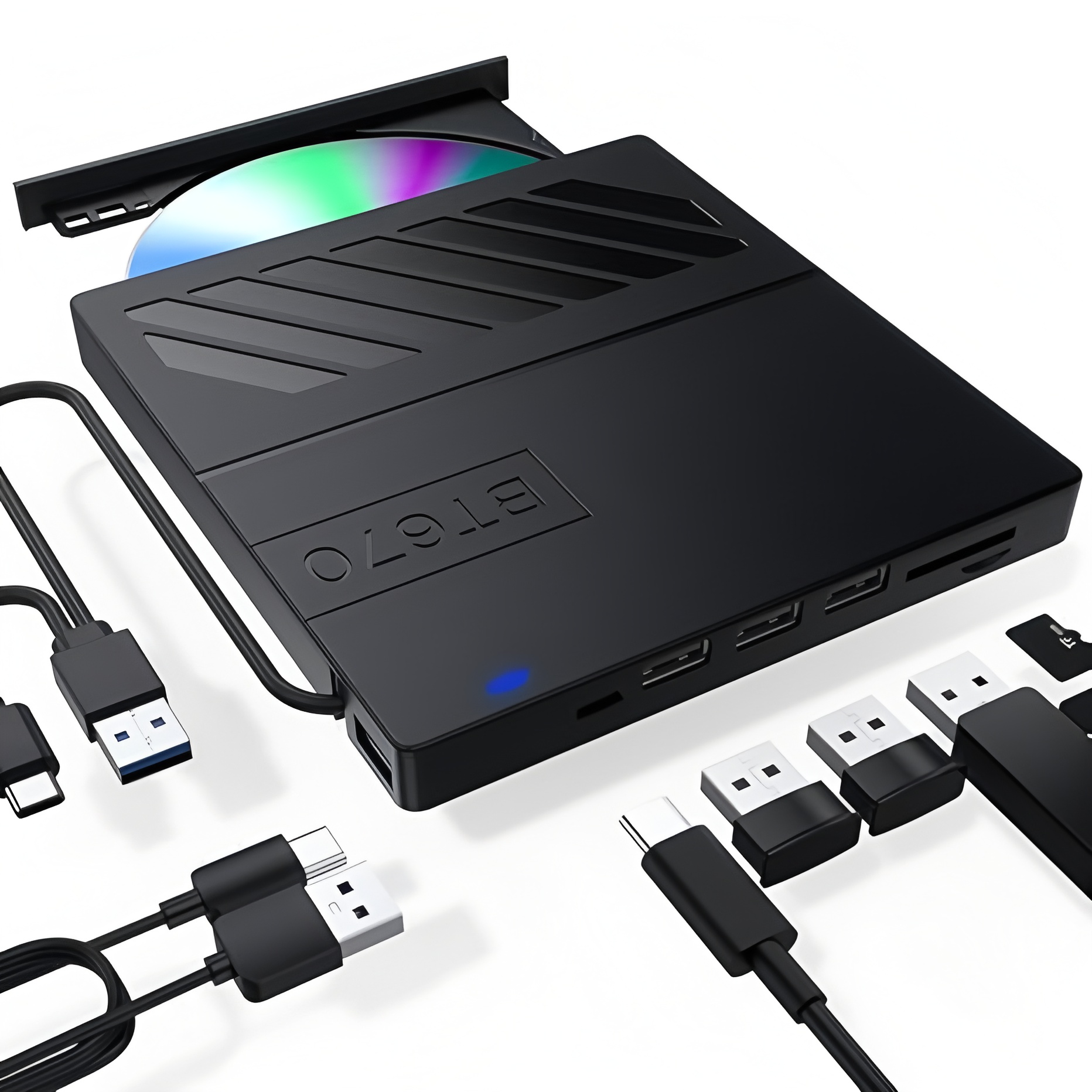
First, let’s clarify why an external CD drive works just as well as a built-in one. External drives connect to your computer via USB (or USB-C for newer devices) and function identically to internal optical drives. They read data from CDs, DVDs, or even Blu-rays (if the drive supports it) and pass that data to your computer, allowing you to run installers just like you would with a built-in drive. The only difference is portability—you can take the external CD drive with you and use it across multiple devices.
Step-by-Step: Install Software from an External CD Drive
The process varies slightly by operating system, but the core steps are consistent. Here’s how to do it on Windows and macOS:
For Windows 10/11
1. Connect the external CD drive: Plug the drive’s USB cable into an available USB port on your Windows PC. Most external drives are plug-and-play, so Windows will automatically install the necessary drivers within a few seconds. You’ll see a notification when the drive is ready to use.
2. Insert the software CD: Place the software disc into the external CD drive’s tray (or slot, for slim drives). Close the tray gently, and Windows will detect the disc.
3. Run the installer: Windows may automatically prompt you to take action—look for a pop-up window with options like “Install or run program from your media.” If the prompt doesn’t appear, open File Explorer, navigate to “This PC,” and double-click the external CD drive (it will show the disc’s name or icon). Locate the setup file (usually named setup.exe, install.exe, or similar) and double-click it to launch the installer.
4. Follow the installation wizard: Complete the installation by following the on-screen instructions—this typically involves accepting the license agreement, choosing an installation location, and clicking “Next” until the process finishes. Once done, you can eject the disc and disconnect the external CD drive if needed.
For macOS
1. Connect the external CD drive: USB-C or USB external CD drives work seamlessly with Macs. Plug the drive into your Mac—macOS will recognize it immediately, and you’ll see the disc icon on your desktop.
2. Insert the software CD: Load the software disc into the external drive. The disc icon will appear on your desktop shortly after.
3. Launch the installer: Double-click the disc icon to open its contents. Look for the installer file (often a .dmg file or a .pkg file) and double-click it. If the software is compatible with macOS, the installer will open—follow the prompts to complete the installation.
4. Eject and disconnect: After installation, drag the disc icon to the Trash (or right-click and select “Eject”) to remove the disc. You can then unplug the external CD drive from your Mac.

Key Considerations When Using an External CD Drive for Software Installation
While installing software from an external CD drive is simple, there are a few things to keep in mind to avoid issues:
· Drive Compatibility: Ensure your external CD drive supports the type of disc you’re using (CD, DVD, Blu-ray). Most external drives are CD/DVD combo drives, but if your software is on a Blu-ray disc, you’ll need a Blu-ray-compatible external drive.
· USB Port Speed: Use a USB 3.0 (or newer) port for faster data transfer. This speeds up the installation process, especially for large software packages. USB 2.0 ports work but may be slower.
· Software Compatibility: Verify that the software on the disc is compatible with your operating system (Windows/macOS) and its version. Older software designed for Windows XP or macOS Snow Leopard may not work on modern systems, even if you use an external CD drive.
· Driver Issues: In rare cases, Windows or macOS may not recognize the external CD drive. If this happens, check the drive manufacturer’s website for updated drivers, or try a different USB port.
· Disc Condition: Scratched, smudged, or damaged discs may cause installation errors. Clean the disc with a soft, lint-free cloth (wiping from center to edge) before inserting it into the external CD drive.
When Might You Need to Use an External CD Drive for Software Installation?
There are several scenarios where an external CD drive becomes essential for software installation:
Your laptop (e.g., modern ultrabooks, MacBooks) lacks a built-in optical drive.Your desktop’s internal CD drive is broken or outdated.You need to install legacy software that’s only available on CD (common for older games, industrial software, or hardware drivers).You’re setting up a new computer without internet access, so cloud downloads aren’t an option.
Your laptop (e.g., modern ultrabooks, MacBooks) lacks a built-in optical drive.Your desktop’s internal CD drive is broken or outdated.You need to install legacy software that’s only available on CD (common for older games, industrial software, or hardware drivers).You’re setting up a new computer without internet access, so cloud downloads aren’t an option.
Final Thoughts
So, can you install software from an external CD drive? Absolutely. An external CD drive is a versatile, affordable tool that bridges the gap between physical media and modern devices. As long as your drive is compatible with your computer and the disc, the installation process is nearly identical to using a built-in drive. Whether you’re reviving an old software title or need a reliable backup for installations, an external CD drive is a worthwhile accessory for any user.
If you’re in the market for an external CD drive, look for models with USB 3.0 connectivity, durable construction, and compatibility with both Windows and macOS for maximum flexibility. With the right drive, installing software from a CD is quick, easy, and hassle-free.
how to stop led lights from flickering on video
how to use neck beauty device