why is my burned video not playing on dvd
If you’re asking, “Why is my burned video not playing on DVD?” you’re not alone—this is a common issue with several root causes, most of which are easy to troubleshoot. Let’s break down the reasons behind burn DVD-video not playing problems and how to fix them.
1. Wrong DVD Format: Data DVD vs. Video DVD
One of the most frequent culprits is burning your video as a data DVD instead of a video DVD. Most standalone DVD players (the ones connected to your TV) can’t recognize data DVDs, even if your computer plays them perfectly . Data DVDs simply store files like documents or videos, while video DVDs follow a specific structure (with VIDEO_TS and AUDIO_TS folders) that DVD players are designed to read . If you dragged and dropped video files directly onto the disc, you likely created a data DVD—this is the top reason for burn DVD-video not playing issues.
2. Incompatible Disc Type or Player Compatibility
DVD discs come in multiple formats: DVD-R, DVD+R, DVD-RW, DVD+RW, DVD-R DL, and DVD+R DL . Not all DVD players support every format—older models, in particular, may only work with DVD-R discs and reject DVD+R or dual-layer (DL) discs . Check your DVD player’s manual or manufacturer’s website to confirm which formats it supports. For broader compatibility, stick to DVD-R discs, as they’re universally recognized by most players.
3. Burning Speed Is Too High
Burning a DVD at maximum speed might save time, but it often leads to playback errors. High speeds can cause the burner to write data inconsistently, resulting in corrupted sectors that DVD players can’t read . Most experts recommend burning video DVDs at 4x or 8x speed—this slower pace ensures the data is written accurately, reducing the chance of burn DVD-video not playing issues. If you used a speed higher than 8x, try re-burning at a lower rate .
4. Disc Not Finalized
Many DVD burning tools require you to “finalize” the disc after burning. Finalization closes the disc, making it playable on other devices—without this step, the disc remains “open” and unrecognizable to most DVD players . If your burning software has an option to finalize (or “close”) the disc, ensure it’s enabled. Some tools auto-finalize, but others (like advanced burning software) leave this as a manual setting.
5. Poor Disc Quality or Damage
Low-quality or damaged discs are another common issue. Cheap DVDs may have faulty layers that fail to hold data, while scratches, fingerprints, or smudges on the disc surface can prevent the player’s laser from reading the data . Always use reputable disc brands (like Verbatim or Sony) and handle discs by the edges to avoid smudges. If your burned video isn’t playing, clean the disc with a soft, dry cloth (wiping from center to edge) and check for scratches—deep scratches may make the disc unusable.
6. Outdated DVD Player Firmware or Region Mismatch
Outdated firmware on your DVD player can cause compatibility issues with burned discs . Manufacturers release firmware updates to improve disc recognition, so check the player’s website for updates. Additionally, DVD players and discs have region codes—if your burned disc uses a region code different from your player, it won’t play. Most homemade burned DVDs are region-free, but double-check your burning settings to confirm.
7. Software or Hardware Issues
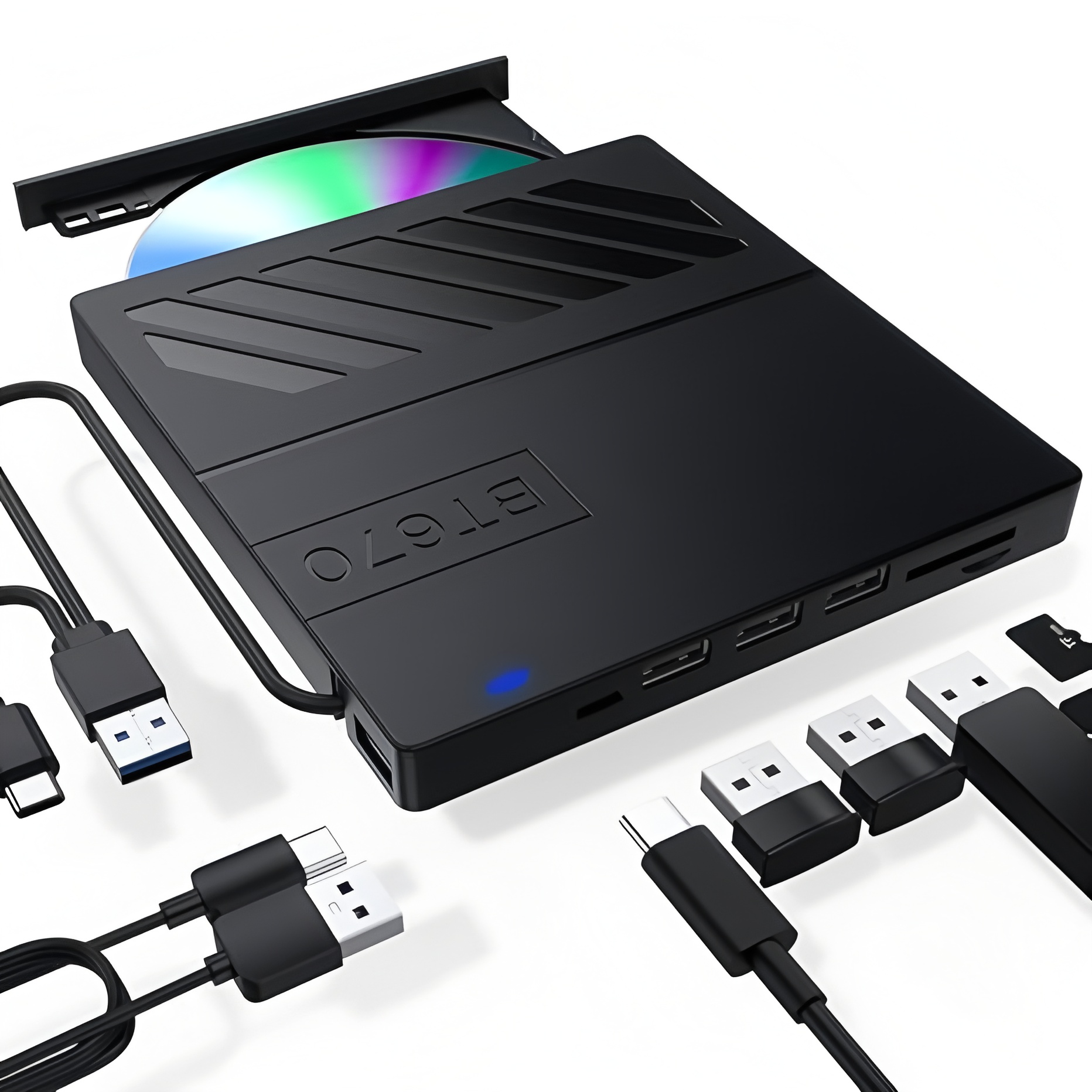
Sometimes the problem lies with your burning software or DVD drive. Using unreliable software may result in incorrect disc structuring—opt for trusted tools like Wondershare DVD Creator, which supports all common video DVD formats and ensures proper burning . If your DVD drive is faulty (e.g., outdated drivers or hardware wear), it may burn discs incorrectly . Try updating your drive’s drivers or using a different drive to rule out hardware issues.

How to Prevent Burn DVD-Video Not Playing Issues
To avoid this frustration in the future: Always burn as a video DVD (not data), use compatible DVD-R discs, burn at 4x-8x speed, enable disc finalization, use high-quality discs, and update your DVD player’s firmware. Testing the disc in multiple players (e.g., your computer and a standalone player) can also help identify if the issue is with the disc or the player.
If you’re still asking, “Why is my burned video not playing on DVD?” start with the simplest fixes—checking if it’s a data DVD, verifying disc compatibility, and re-burning at a lower speed. In most cases, these steps will resolve the burn DVD-video not playing problem and have your videos playing smoothly in no time.
how to eject cd from mac external drive
how do i download a dvd player for my laptop