how to record vhs to dvd
author: LJ
2025-12-22
How to Record VHS to DVD in 2025: Step-by-Step Guide with External DVD Drive
Attics and basements full of old VHS tapes—filled with childhood birthdays, family holidays, and once-in-a-lifetime moments—are a ticking time bomb for memories.
Magnetic VHS tapes degrade over 10–15 years, and VCR players are increasingly hard to find. If you’re desperate to preserve these precious analog memories, you’re
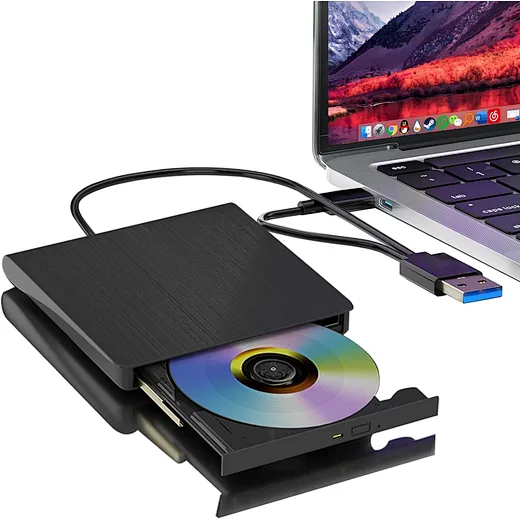
probably searching for how to record vhs to dvd. The good news? You can easily do it with a dvd recorder—and a high-quality external DVD drive (our specialty) makes
the process seamless for modern laptops and desktops.
“The biggest myth about VHS-to-DVD conversion is that it requires professional gear,” says Maria Carter, a media preservation expert. “All you need is a working VCR,
a video capture device, and a reliable external DVD drive—no advanced tech skills required. An external drive is perfect for modern users because most new laptops don’t
have built-in optical drives, making it the most accessible dvd recorder option today.”

Key Equipment You’ll Need (External DVD Drive Is a Must)
Before you start recording VHS to DVD, gather these essentials—most are affordable or easy to source, and our external DVD drive is the star of the show:
- A functioning VCR (VHS player): If you don’t have one, check secondhand stores or online marketplaces.
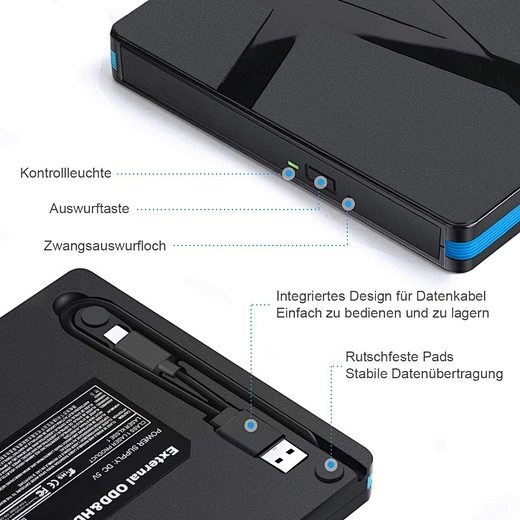
- A high-quality external DVD drive (with burning capability): This is your core dvd recorder tool for modern devices.
- A USB video capture device: Converts analog VHS signals to digital for your computer (look for plug-and-play models for beginners).
- Connection cables: RCA cables (red/white/yellow for audio and video) or S-video cables (for better quality, if supported).
- Blank DVD discs: Opt for DVD-R (write-once, ideal for permanent storage) or DVD+RW (rewritable, good for testing).
- Optional: VCR head cleaning kit (to improve playback quality) and DVD burning software (manyexternal DVD drives come with free bundled software).
Step-by-Step: Record VHS to DVD Using an External DVD Drive
This method uses an external DVD drive and computer, which is perfect for modern users with laptops or desktops. It’s flexible, allows basic video editing,
and works with nearly all Windows and macOS devices. Here’s how to do it:
1. Set up the video capture device: Plug the USB end of the capture device into your computer. Connect the RCA or S-video cables to the capture device, then
plug the other end into the “out” ports on your VCR. Ensure the VCR is plugged into power and turned on.
2. Install necessary software: If your external DVD drive comes with bundled DVD burning/capture software (like CyberLink PowerDirector or Roxio Easy VHS to DVD),
insert the installation disc into the drive and follow the on-screen prompts to install 【Check Our Software-Bundled Drives】. If not, use free tools like OBS Studio
for capture and ImgBurn for burning.
3. Test the connection: Insert your VHS tape into the VCR. Open the capture software and press “Play” on the VCR—you should see the footage on your computer screen.
If not, double-check cable connections (ensure color-coded cables match the ports).
4. Capture the VHS footage: Rewind the VHS tape to the start of the footage you want to record. Press “Record” in the capture software, then press “Play” on the VCR.
Let the tape play through—this process happens in real time, so the capture time matches the length of the footage. Press “Stop” on both devices when done, then save
the captured video file (AVI or MP4 format is recommended for best results).
5. Edit (optional): Use basic video editing software (like iMovie for Mac or Windows Video Editor) to trim unwanted parts, fix audio issues, or add titles to your footage.
6. Burn to DVD with your external DVD drive: Insert a blank DVD disc into your external DVD drive. Open your DVD burning software, add the captured (or edited) video file,
and select “Burn”. Most software will prompt you to “finalize” the DVD—this step is critical! An unfinalized DVD won’t play on standard DVD players. Follow the prompts to complete finalization.
Pro Tips for Perfect VHS-to-DVD Conversion
To ensure your converted DVDs look and sound their best, follow these expert tips:
- Clean your VCR heads first: Dust and debris on VCR heads cause fuzzy video and distorted audio. Use a VCR head cleaning kit before you start recording—this simple step makes a huge difference in quality.
what is a good portable dvd player
can you buy an external cd drive for a laptop
Related Article
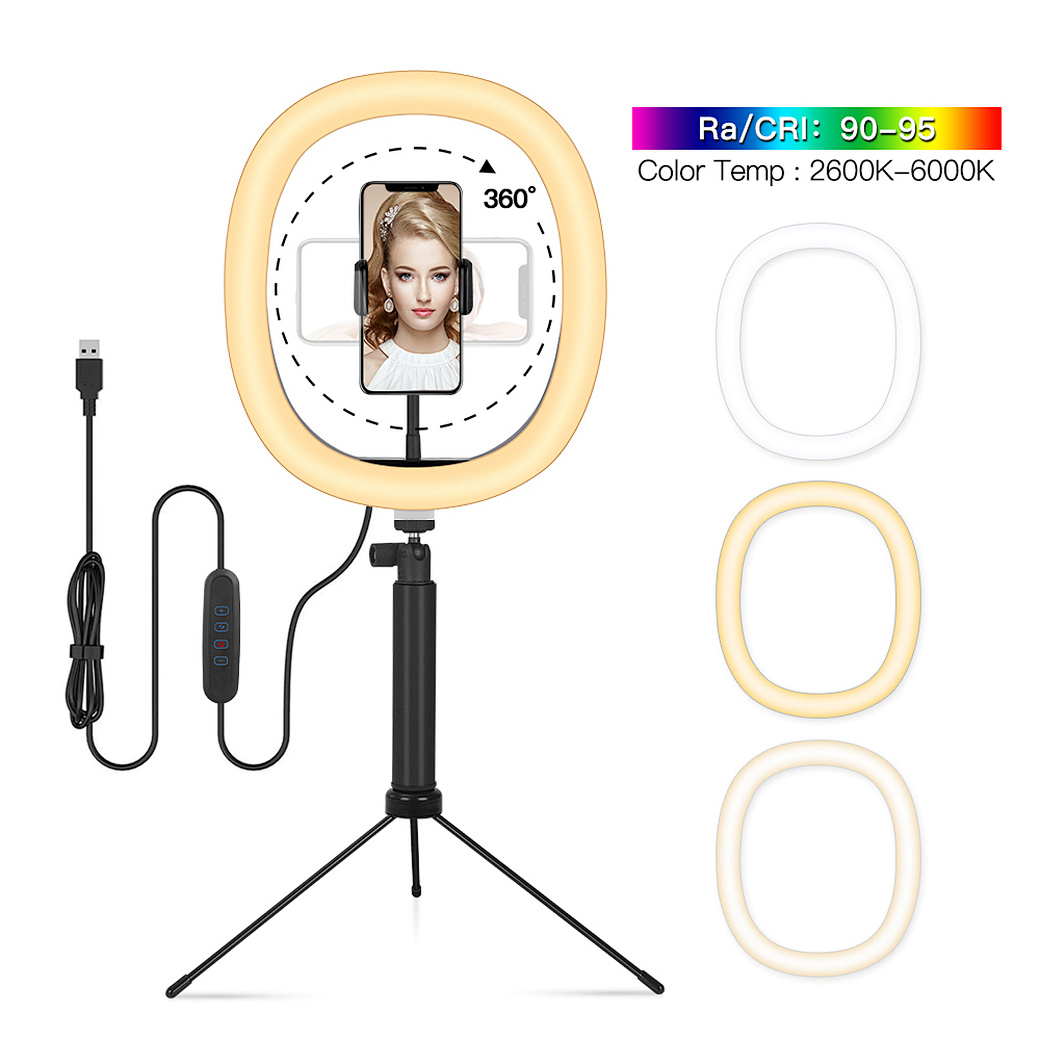
Confused about how to fix half moon wall light? Our simple quick tips help you troubleshoot common issues and get your cozy fixture working again fast.
how to fix half moon wall light
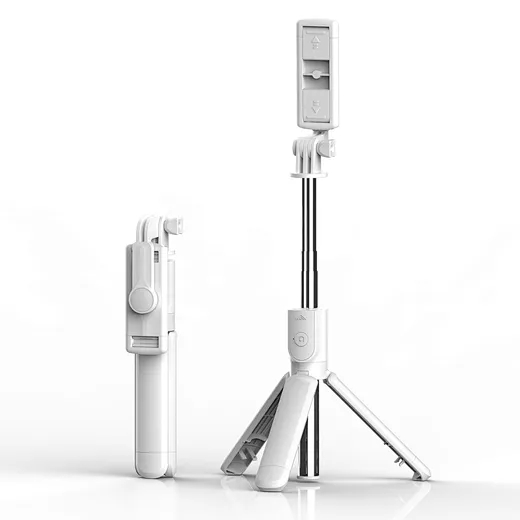
In the age of TikTok, Instagram Reels, and 24/7 live broadcasting, the Selfie Stick has evolved from a "tourist gadget" into an essential professional tool.
who invented selfie stick