How to Burn Blu Ray
author: LJ
2025-12-24
If you’re wondering how to burn blu ray, the process is simpler than you think—all you need is a reliableblu ray burner, blank discs, and the right software.
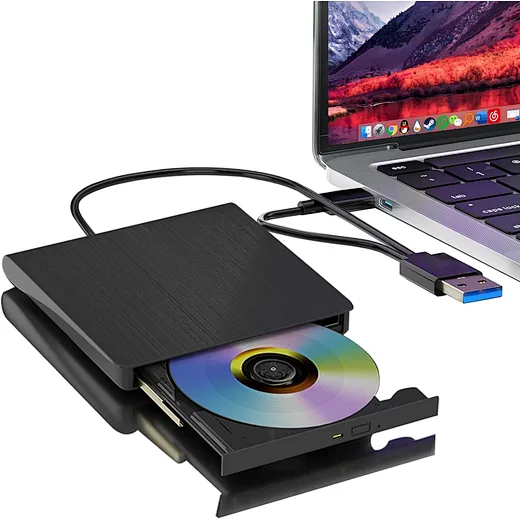
For modern laptops and desktops (most lack built-in optical drives), a high-performance external Blu Ray burner (our specialty) is the perfect solution.
“A quality blu ray burner is non-negotiable for burning Blu Ray discs—cheap models often fail mid-burn or produce discs that skip,” says tech expert Jason Reed.
“A quality blu ray burner is non-negotiable for burning Blu Ray discs—cheap models often fail mid-burn or produce discs that skip,” says tech expert Jason Reed.
“External Blu Ray burners are ideal for modern users, as they’re portable, plug-and-play, and compatible with nearly all Windows and macOS devices.
With the right tools, anyone can burn professional-grade Blu Ray discs at home.”
Essential Equipment to Burn Blu Ray
Before you learn how to burn blu ray, gather these must-have tools—our external Blu Ray burner takes center stage for seamless performance:
Essential Equipment to Burn Blu Ray
Before you learn how to burn blu ray, gather these must-have tools—our external Blu Ray burner takes center stage for seamless performance:
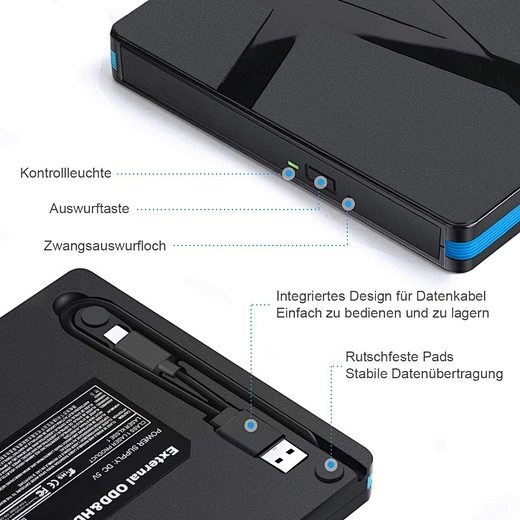
- A high-quality external Blu Ray burner: Ensure it supports Blu Ray burning (not just reading) and is compatible with your OS (Windows 11/macOS Sonoma).
Look for USB-C connectivity for modern devices and USB-A compatibility for older ones .
- Blank Blu Ray discs: Choose BD-R (write-once, ideal for permanent storage) or BD-RE (rewritable, great for testing). Opt for BDXL discs (100GB) for large files like 4K videos or full media libraries.
- Blu Ray burning software: Free tools like ImgBurn (Windows) or Burn (macOS) work for basic needs, while premium software (CyberLink Power2Go, Roxio Creator)
offers advanced features like menu creation and video editing. Many of our external Blu Ray burners come with bundled premium software .
- Source files: Prepare your content (videos, photos, data) in compatible formats (MP4, AVI, MKV for videos; JPEG for photos). Ensure total file size doesn’t exceed the blank disc’s capacity.
- Optional: A USB 3.0+ cable (for fast data transfer) and disc label maker (for professional-looking finished discs).

Step-by-Step: How to Burn Blu Ray with an External Blu Ray Burner
Follow these clear steps to burn Blu Ray using an external Blu Ray burner—works for both data discs and video discs (with menus):
Follow these clear steps to burn Blu Ray using an external Blu Ray burner—works for both data discs and video discs (with menus):
- Connect your external Blu Ray burner: Plug the drive into your computer via USB-C or USB-A. Wait for your OS to recognize the device (no drivers needed for most modern systems). Insert a blank Blu Ray disc into the burner.
- Choose your burning software: Open your preferred Blu Ray burning tool. For video discs (with menus), select “Create Blu Ray Video Disc”; for data storage, choose “Data Disc” or “Blu Ray Data Disc.”
- Add your files: Drag and drop your source files into the software interface. For video discs, use the software’s editing tools to arrange clips, add titles, and create custom menus (ideal for movie collections) . Ensure the total file size stays under the disc’s capacity (check the software’s size indicator).
- Adjust burning settings: Select the burning speed—2x–4x is recommended for Blu Ray discs (faster speeds increase the risk of errors). Enable “Verify Disc After Burning” to ensure no data is corrupted during the process. For video discs, confirm the video format is compatible with standard Blu Ray players.
- Start burning: Click “Burn” or “Start” to begin the process. The time varies by disc capacity and speed (a 50GB disc takes 30–60 minutes). Do not disconnect the external Blu Ray burner or shut down your computer mid-burn—this will ruin the disc.
- Finalize the disc: Most software automatically finalizes the Blu Ray disc after burning. This step is critical—unfinalized discs won’t play on standard Blu Ray players or other devices. If prompted, confirm finalization and wait for the process to complete.
- Test the disc: Eject the finished disc and test it on a Blu Ray player, game console, or another computer with a blu ray burner to ensure playback is smooth and all files are accessible.
Pro Tips for Successful Blu Ray Burning
Avoid common pitfalls and ensure professional results with these expert tips:
Avoid common pitfalls and ensure professional results with these expert tips:
- Use high-quality blank discs: Cheap Blu Ray discs are prone to errors, data loss, and poor playback. Stick to reputable brands like Verbatim or Sony for reliability.
- Keep your external burner cool: Burning Blu Ray generates heat—ensure the drive is in a well-ventilated area and avoid stacking objects on top of it.
- Update your software: Outdated burning software can cause compatibility issues. Install the latest updates before burning.
- Back up files first: Always keep a digital backup of your source files in case the disc burning fails. Our external Blu Ray burners also double as reliable backup tools for large files .
- Avoid multitasking: Close other programs during burning to allocate maximum system resources to the process—this reduces the risk of buffer underruns (which ruin discs).
FAQ: Common Questions About How to Burn Blu Ray
- Q: Do I need a special blu ray burner to burn Blu Ray discs?
- A: Yes—standard DVD burners cannot burn Blu Ray discs. You need a dedicated blu ray burner (internal or external) that supports Blu Ray writing. Our external models are perfect for modern devices without built-in drives .
- Q: Can I burn 4K videos to Blu Ray?
- A: Yes—use ablu ray burner that supports 4K Blu Ray and BDXL discs (100GB/128GB) for storage. Ensure your burning software is compatible with 4K video formats and that the finished disc works with 4K Blu Ray players.
- Q: How long does it take to burn a Blu Ray disc?
- A: Burn time depends on disc capacity and speed. A 25GB Blu Ray disc burns in 15–30 minutes at 4x speed, while a 100GB BDXL disc takes 60–90 minutes. Slow down the burn speed for better reliability.
Final Thoughts: Master Blu Ray Burning with the Right Tools
Now that you know how to burn blu ray, you can easily create high-capacity discs for storage, entertainment, or sharing. The key to success is a reliable blu ray burner—our external models offer portability, compatibility, and performance, making them ideal for home users, content creators, and professionals alike.
Ready to start burning Blu Ray discs? Explore our lineup of top-rated external Blu Ray burners to find the perfect match for your needs. With our tools and guide, you’ll be creating professional-grade Blu Ray discs in no time.
Now that you know how to burn blu ray, you can easily create high-capacity discs for storage, entertainment, or sharing. The key to success is a reliable blu ray burner—our external models offer portability, compatibility, and performance, making them ideal for home users, content creators, and professionals alike.
Ready to start burning Blu Ray discs? Explore our lineup of top-rated external Blu Ray burners to find the perfect match for your needs. With our tools and guide, you’ll be creating professional-grade Blu Ray discs in no time.
how much is an external optical drive
what is a good portable dvd player
Related Article
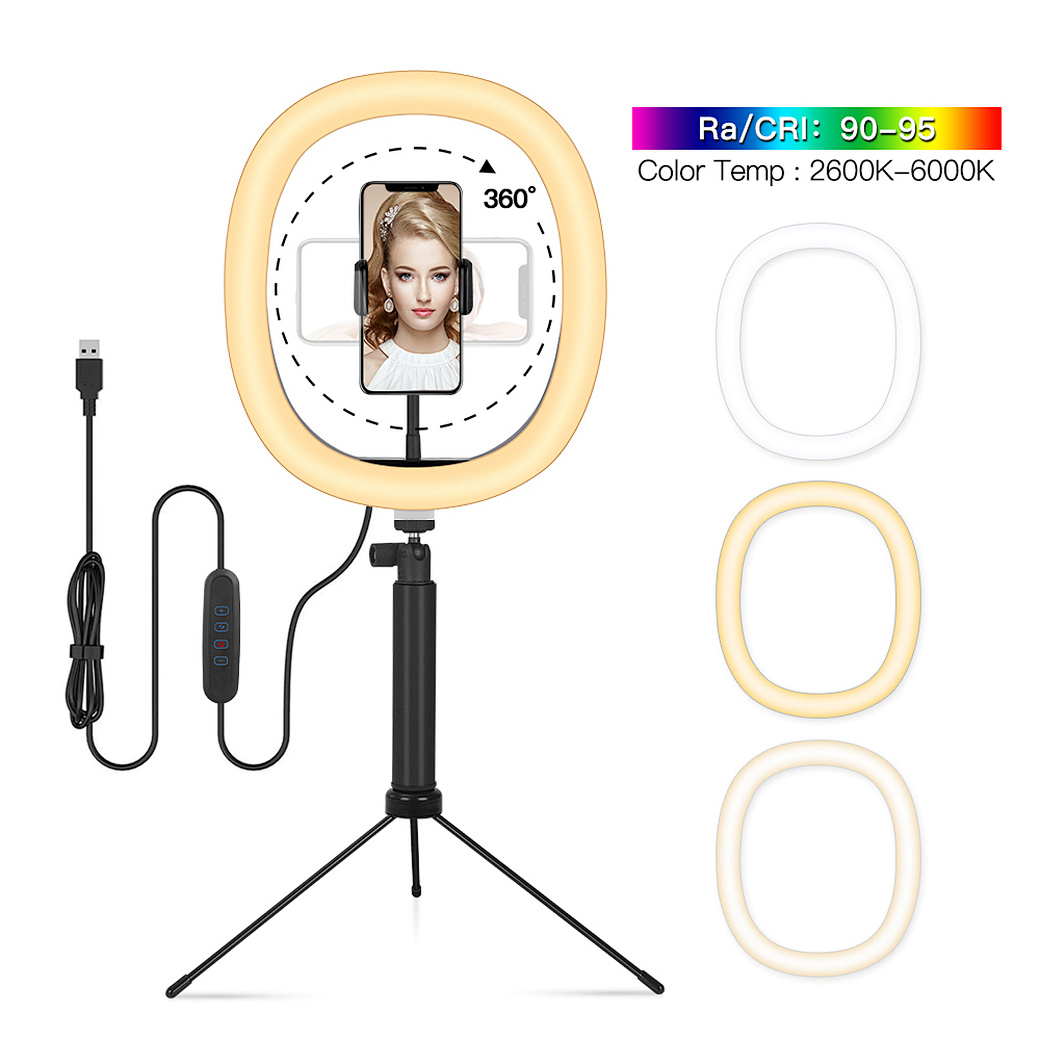
Confused about how to fix half moon wall light? Our simple quick tips help you troubleshoot common issues and get your cozy fixture working again fast.
how to fix half moon wall light
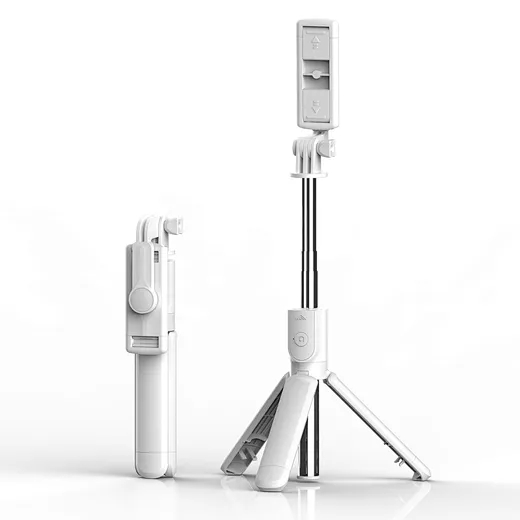
In the age of TikTok, Instagram Reels, and 24/7 live broadcasting, the Selfie Stick has evolved from a "tourist gadget" into an essential professional tool.
who invented selfie stick