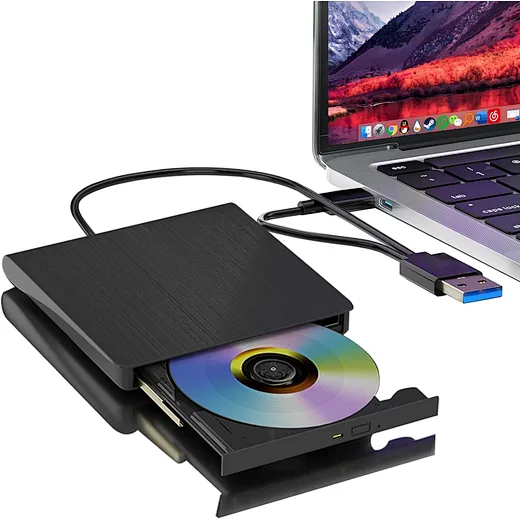
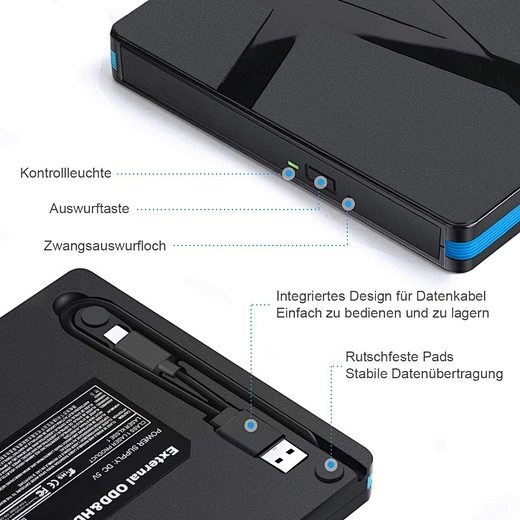
how to connect external dvd drive with laptop
author: LJ
2025-12-29
This 2025 news guide breaks down how to connect external dvd drive with laptop seamlessly, troubleshoots common issues, and explains why our premium external DVD drives are the perfect companion for any laptop without a built-in drive.
Turn your non-optical laptop into a functionallaptop with dvd drive in minutes.
What You Need to Connect External DVD Drive with Laptop
To turn your laptop into a makeshiftlaptop with dvd drive, you only need two essentials—our external DVD drive takes the guesswork out of compatibility:
What You Need to Connect External DVD Drive with Laptop
To turn your laptop into a makeshiftlaptop with dvd drive, you only need two essentials—our external DVD drive takes the guesswork out of compatibility:
- A reliable external DVD drive: Our lineup includes USB-C/USB-A dual-connectivity drives, compatible with all modern and older laptops. They support CD/DVD reading, burning, and work seamlessly with Windows 11/macOS Sonoma .
- Connection cable (usually included): Most external DVD drives come with a USB-C or USB-A cable—our drives include both for versatility, ensuring compatibility with any laptop port.
- Optional: External power adapter (rarely needed): Our drives are USB-powered, so no extra power source is required—just plug into your laptop and go.
Step-by-Step: How to Connect External DVD Drive with Laptop (Windows & macOS)
Connecting an external DVD drive is universal across systems, but we’ve broken down steps for Windows and macOS to ensure a smooth process—turning your laptop into a laptop with dvd drive in 3 easy steps:
For Windows Laptops (10/11)
Connecting an external DVD drive is universal across systems, but we’ve broken down steps for Windows and macOS to ensure a smooth process—turning your laptop into a laptop with dvd drive in 3 easy steps:
For Windows Laptops (10/11)
- Plug in the external DVD drive: Connect one end of the USB cable to the drive and the other to your laptop’s USB-C or USB-A port. Our drives have LED indicators—when the light turns on, the drive is powered and detected.
- Wait for automatic recognition: Windows will instantly detect the drive and install necessary drivers (no manual downloads needed). A pop-up window will appear, showing the drive under “This PC”—just like a built-in laptop with dvd drive.
- Use the drive: Insert a CD/DVD into the drive tray. Windows will prompt you to choose an action (play music, open files, burn disc) or you can access it via File Explorer. Our drives support fast read/write speeds, matching the performance of a native laptop with dvd drive.

For macOS Laptops (Sonoma/Ventura)
- Connect the drive: Plug the external DVD drive into your MacBook/iMac via USB-C (or USB-A with adapter, though our drives include dual cables). macOS recognizes the drive within 10 seconds—no setup required.
- Access the drive: The drive icon will appear on your desktop, just like a USB drive. For older macOS versions, check “Finder” under “Devices” to locate it.
- Start using it: Insert a disc—the drive will read it automatically. Use macOS’s native software (QuickTime for videos, Preview for photos) or third-party tools like VLC to play content. Burning discs? Use Disk Utility (built-in) for seamless results, just like a laptop with dvd drive.

Troubleshooting: External DVD Drive Not Connecting to Laptop
If you’re having trouble with how to connect external dvd drive with laptop, these quick fixes resolve 99% of issues—no tech expertise required:
If you’re having trouble with how to connect external dvd drive with laptop, these quick fixes resolve 99% of issues—no tech expertise required:
- Try a different USB port: Faulty ports are the most common issue. Swap to another port on your laptop—USB 3.0 ports (blue) work best for faster performance.
- Check the cable: Ensure the USB cable is fully plugged in. Our drives include durable cables, but frayed or loose cables can cause connection drops—replace if needed .
- Update your OS: Outdated Windows/macOS can cause compatibility issues. Install the latest updates to ensure your laptop recognizes the external drive, just like a modern laptop with dvd drive.
- Restart your laptop: A simple restart resets system settings and fixes temporary glitches preventing the drive from connecting.
- Test on another device: If the drive still doesn’t work, test it on a different laptop—this confirms if the issue is with the drive or your laptop’s ports.
Why Our External DVD Drive Is Perfect for Your Laptop
While any external DVD drive can turn your laptop into a laptop with dvd drive, our lineup stands out for compatibility, durability, and performance:
While any external DVD drive can turn your laptop into a laptop with dvd drive, our lineup stands out for compatibility, durability, and performance:
- Dual connectivity: USB-C/USB-A cables included, working with every laptop model (new MacBooks, old Windows laptops, and everything in between).
- Plug-and-play: No drivers or software to install—works instantly, just like a built-in laptop with dvd drive.
- Multi-functional: Reads/writes CDs/DVDs, supports M-DISC for long-term data preservation, and operates quietly—ideal for home, office, or travel.
- Durable design: Aluminum casings protect against drops and scratches, ensuring long-term use for years of reliable access to physical media.
FAQ: Common Questions About Connecting External DVD Drive with Laptop
Q: Do I need software to connect external DVD drive with laptop?
A: No! Modern external DVD drives are plug-and-play—Windows and macOS automatically detect them, no extra software needed. You only need media software (like VLC) to play content, just like a laptop with dvd drive.
Q: Can I use an external DVD drive with a Chromebook?
A: Most Chromebooks have limited support for external optical drives—they work for basic reading but not burning. Our drives are optimized for Windows/macOS, turning those laptops into reliable laptop with dvd drive alternatives.
Q: Will an external DVD drive slow down my laptop?
A: No—our drives use minimal system resources. They operate independently, just like a built-in laptop with dvd drive, so your laptop’s speed remains unaffected.
Final Thoughts: Connect External DVD Drive & Enjoy Physical Media
Now you know how to connect external dvd drive with laptop—it’s quick, easy, and turns any laptop into a functional laptop with dvd drive. Our external DVD drives eliminate the hassle of built-in drive shortages, offering compatibility, portability, and performance for all your CD/DVD needs.
Ready to access your physical media collection? Browse our lineup of external DVD drives to find the perfect match for your laptop. With plug-and-play setup and reliable performance, you’ll forget your laptop ever lacked a built-in drive.
how to open the cd drive
how to play a mini cd
Related Article
Confused about how to fix half moon wall light? Our simple quick tips help you troubleshoot common issues and get your cozy fixture working again fast.
how to fix half moon wall light
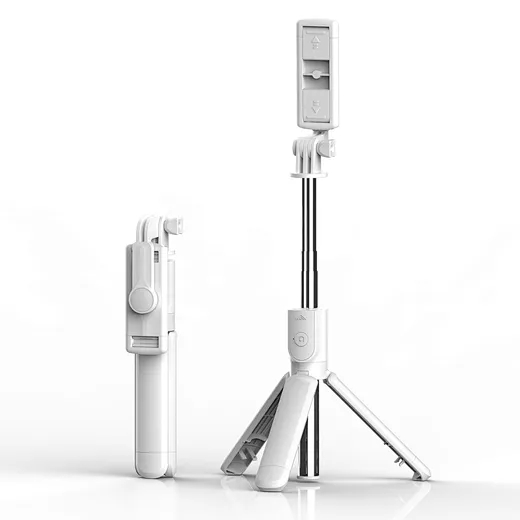
In the age of TikTok, Instagram Reels, and 24/7 live broadcasting, the Selfie Stick has evolved from a "tourist gadget" into an essential professional tool.
who invented selfie stick