how to open the cd drive
author: LJ
2025-12-30
This 2025 news guide breaks down simple, safe methods to open any cd drive (internal or external), troubleshoots common issues, and explains why our external cd drive is designed for easy access and reliability. Never struggle with a stuck cd drive again.
How to Open the CD Drive: Basic Methods (All Drives)
Start with these simple steps to open your cd drive—works for both internal drives and our external cd drive lineup. These methods are safe and require no tools:
1. Use the Physical Eject Button
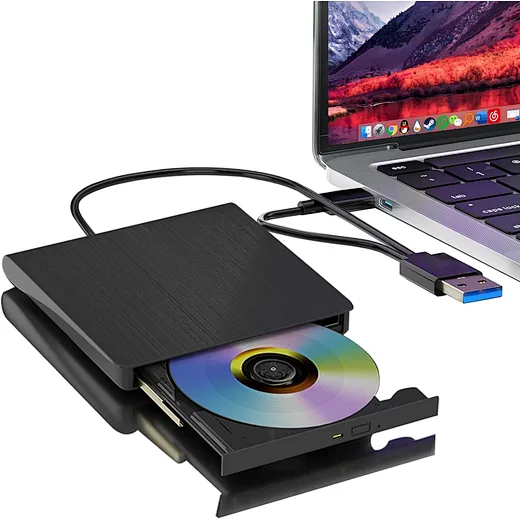
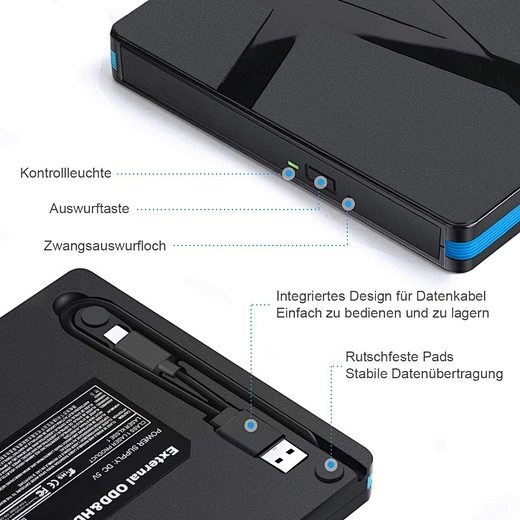
The easiest way to open a cd drive is to press the eject button on the front of the drive. For our external cd drive, this button is clearly marked and located on the front or side of the device. Ensure the drive is powered on (our external drives have an LED indicator to confirm power) and press the button firmly—this triggers the tray to slide open automatically. If the button doesn’t work, move to the next method.
How to Open the CD Drive: Basic Methods (All Drives)
Start with these simple steps to open your cd drive—works for both internal drives and our external cd drive lineup. These methods are safe and require no tools:
1. Use the Physical Eject Button
The easiest way to open a cd drive is to press the eject button on the front of the drive. For our external cd drive, this button is clearly marked and located on the front or side of the device. Ensure the drive is powered on (our external drives have an LED indicator to confirm power) and press the button firmly—this triggers the tray to slide open automatically. If the button doesn’t work, move to the next method.

2. Eject from Your Computer (Windows/macOS)
If the physical button fails, you can eject the cd drive directly from your operating system—ideal for both internal drives and our external cd drive:
- Windows 10/11: Open File Explorer, locate “This PC,” right-click on your cd drive icon, and select “Eject.” The tray will open automatically. If the icon doesn’t appear, ensure your external cd drive is properly connected via USB.
- macOS Sonoma/Ventura: On your desktop, right-click the cd drive icon and select “Eject.” For older Macs or if the icon is hidden, open Finder, go to “Devices,” and click the eject icon next to the cd drive. Our external cd drive is plug-and-play, so it will appear instantly once connected.
3. Use Keyboard Shortcuts
For quick access, use these keyboard shortcuts to open your cd drive—works on most computers with a connected cd drive:
For quick access, use these keyboard shortcuts to open your cd drive—works on most computers with a connected cd drive:
- Windows: Press Ctrl + Shift + Esc to open Task Manager (if the drive is unresponsive), or hold Fn + F10 (varies by laptop brand) to eject.
- macOS: Press Fn + Eject (or just Eject if your keyboard has the key) to open the cd drive instantly.
How to Open a Stuck CD Drive (Emergency Methods)
If basic methods fail, these emergency tricks will open a stuck cd drive—safe for both internal drives and our external cd drive (avoid forcing the tray open!):
1. Emergency Eject Hole (Most Reliable)
Nearly all cd drives (including our external models) have a tiny emergency eject hole on the front panel. This is the safest way to open a stuck drive:
If basic methods fail, these emergency tricks will open a stuck cd drive—safe for both internal drives and our external cd drive (avoid forcing the tray open!):
1. Emergency Eject Hole (Most Reliable)
Nearly all cd drives (including our external models) have a tiny emergency eject hole on the front panel. This is the safest way to open a stuck drive:
- Turn off your computer and disconnect the external cd drive from power (for internal drives, shut down the PC completely).
- Find the small hole (1–2mm wide) on the front of the cd drive—for our external cd drive, it’s near the eject button.
- Insert a paperclip (unfolded), toothpick, or small screwdriver into the hole. Push gently until you feel resistance, then apply slight pressure—this releases the tray manually.
- Pull the tray open slowly to retrieve your disc. For our external cd drive, reconnect power and test the eject button again to ensure it works.
2. Restart Your Computer
Temporary software glitches often cause a cd drive to get stuck. Restart your computer—when it boots back up, the cd drive tray may open automatically.
Temporary software glitches often cause a cd drive to get stuck. Restart your computer—when it boots back up, the cd drive tray may open automatically.
For our external cd drive, disconnect it before restarting, then reconnect once the computer is on.
Why Our External CD Drive Is Less Likely to Get Stuck
Our external cd drive lineup is engineered to avoid common stuck-tray issues that plague cheap drives, making it a reliable choice for long-term use:
Why Our External CD Drive Is Less Likely to Get Stuck
Our external cd drive lineup is engineered to avoid common stuck-tray issues that plague cheap drives, making it a reliable choice for long-term use:
- Durable gears & motors: High-quality internal components prevent jamming, even with frequent use.
- Emergency eject hole: Built-in for easy access, so you never have to force the tray open.
- Plug-and-play design: Minimal software interference reduces glitches that cause unresponsive drives.
- Dust-resistant tray: Prevents dust buildup (a top cause of stuck drives) to keep performance smooth.
Upgrade to our reliable external cd drive for hassle-free access to your discs—no more struggling with stuck trays.
FAQ: Common Questions About How to Open the CD Drive
FAQ: Common Questions About How to Open the CD Drive
Q: Why won’t my external cd drive open?
A: Common causes include power issues, dust buildup, or software glitches. Try reconnecting the USB cable, using the emergency eject hole, or restarting your computer.
Our external cd drive has built-in safeguards to minimize these issues .
Q: Can I damage my cd drive by using the emergency eject hole?
A: No—this hole is designed for emergencies. As long as you push gently (don’t force it), you won’t damage the cd drive or its components.
Q: Does an external cd drive have the same eject options as a built-in one?
A: Yes! Our external cd drive supports physical eject buttons, computer-based ejection, keyboard shortcuts, and emergency eject holes—just like a built-in cd drive.
Final Thoughts: Master How to Open the CD Drive Easily
Now you know how to open the cd drive in every scenario—whether it’s a built-in drive or our external cd drive. The key is to start with basic methods (physical button, computer ejection)
before moving to the emergency eject hole, and always avoid forcing the tray open. Our external cd drive is designed for reliability and easy access, ensuring you never struggle with stuck discs again.
Ready to upgrade to a hassle-free cd drive? Browse our lineup of external drives for Windows, macOS, and all laptops—built to last and perform seamlessly.
what does an optical drive do
how to connect external dvd drive with laptop
Related Article
Confused about how to fix half moon wall light? Our simple quick tips help you troubleshoot common issues and get your cozy fixture working again fast.
how to fix half moon wall light
In the age of TikTok, Instagram Reels, and 24/7 live broadcasting, the Selfie Stick has evolved from a "tourist gadget" into an essential professional tool.
who invented selfie stick