how to play a mini cd
author: LJ
2025-12-27
These tiny 8cm discs (also called business card CDs) were everywhere decades ago, but modern laptops and desktops have long ditched built-in drives that fit them.
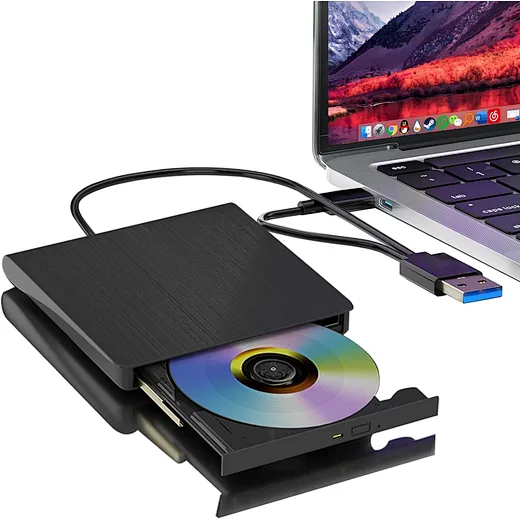
Many people think you need a rare, outdated mini cd player to access their content—but that’s a huge myth. The truth is, a reliable external dvd drive (our core product) is the perfect, accessible solution to play and digitize mini CDs seamlessly.
What You Need to Play a Mini CD (Skip the Mini CD Player!)
You don’t need to track down a discontinued mini cd player to enjoy your tiny discs.
You don’t need to track down a discontinued mini cd player to enjoy your tiny discs.
These 3 essentials are all you need, with our external dvd drive taking center stage for reliability and convenience:
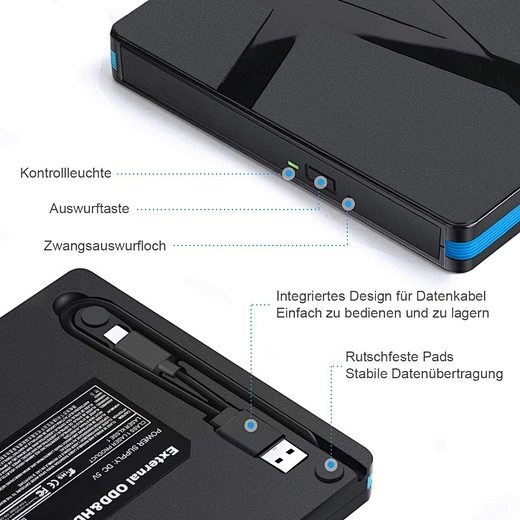
- A tray-style external dvd drive: Slot-loading drives risk jamming mini CDs—opt for a tray-style model (our specialty) designed to fit small discs. Our lineup works with Windows 11, macOS Sonoma, and all laptops, with plug-and-play functionality and no extra drivers needed
- Mini CD adapter (optional but highly recommended): A cheap plastic 8cm-to-12cm adapter (costs $3–$8) clips around the mini cd, turning it into a standard-sized disc that sits securely in your external dvd drive tray. It prevents wobbling and protects both the disc and drive.
- Free media software: VLC Media Player (works for Windows/macOS) plays all mini cd formats—music, photos, data, and old software—no proprietary tools required (unlike outdated mini cd players that need specific software).
Step-by-Step: How to Play a Mini CD (Use External DVD Drive, No Mini CD Player)
This easy process works for all modern laptops, no technical skills required. Follow these steps to play your mini cd without a single issue:
This easy process works for all modern laptops, no technical skills required. Follow these steps to play your mini cd without a single issue:
- Connect your external dvd drive: Plug the drive into your laptop via USB-C or USB-A (our drives have dual connectivity for new and old devices). Wait 10 seconds for your system to recognize it—plug-and-play, no setup needed.
- Prep your mini cd: Wipe the disc gently with a lint-free cloth (wipe from center to edge, not in circles) to remove dust and smudges—old mini CDs often get dirty, which causes skipping (a common headache with old mini cd players too).
- Load the mini cd into the drive: Open your external dvd drive tray. If using an adapter, snap the mini cd into it first; if not, place the mini cd directly in the center of the tray (align it with the small inner circle—never place it off-center).
- Close the tray carefully: Push the tray closed gently (don’t force it) to avoid shifting the mini cd. Your external dvd drive will read the disc automatically, just like a standard CD.
- Play the mini cd: Open VLC Media Player (or your default media software). The software will detect the mini cd—click “Play” to access music, open files, or run software. For data mini CDs, your laptop will pop up a folder with all stored content, just like a USB drive.
Critical Tips to Avoid Damaging Your Mini CD & External Drive
Playing mini cds is simple, but these tips prevent common issues (that often plague old mini cd players too) and extend your drive’s lifespan:
Playing mini cds is simple, but these tips prevent common issues (that often plague old mini cd players too) and extend your drive’s lifespan:
- Never use a slot-loading external dvd drive for mini cds: Slot drives pull discs in automatically—they’ll jam the tiny mini cd and can break the drive’s internal parts. Stick to our tray-style drives
- Don’t force the mini cd in: If it doesn’t sit securely, use an adapter—forcing it causes scratches and wobbling during playback.
- Don’t run the drive at high speed: Most external dvd drives let you adjust read speed—set it to 2x–4x for mini cds to avoid skipping (fast speeds work for standard CDs, not tiny ones).
- Digitize your mini cds (pro hack): Once you play the mini cd, copy all content to your laptop hard drive. Mini CDs degrade over time, and digitizing means you won’t need a mini cd player or external dvd drive to access the content later. Our drives make copying fast and easy!
FAQ: Common Questions About How to Play a Mini CD
- Q: Do I really need a mini cd player to play mini CDs?
- A: No! A tray-style external dvd drive is better—mini cd players are outdated, hard to find, and often break down. Our external dvd drives are affordable, portable, and work for mini CDs, standard CDs, and DVDs too.
- Q: Can all external dvd drives play a mini cd?
- A: Tray-style drives can—slot-loading drives cannot. Our tray-style lineup is optimized for mini cd playback, so you never have to worry about jamming
- Q: Why won’t my mini cd play even with an external drive?
- A: Old mini cds often get scratched or dirty—clean them first. If it still won’t play, the disc may be damaged (a common issue, since mini CDs are more fragile than standard discs).
Final Thoughts: Ditch the Mini CD Player, Use an External DVD Drive!
Now you know exactly how to play a mini cd without hunting for a rare, unreliable mini cd player. A tray-style external dvd drive is the smart, versatile choice—it plays mini CDs, standard CDs, and DVDs, works with all modern laptops, and costs far less than a secondhand mini cd player. Whether you’re revisiting old music, accessing legacy files, or preserving childhood photos, our external dvd drives make the process seamless and safe.
Now you know exactly how to play a mini cd without hunting for a rare, unreliable mini cd player. A tray-style external dvd drive is the smart, versatile choice—it plays mini CDs, standard CDs, and DVDs, works with all modern laptops, and costs far less than a secondhand mini cd player. Whether you’re revisiting old music, accessing legacy files, or preserving childhood photos, our external dvd drives make the process seamless and safe.
Don’t let your precious mini CD content collect dust—grab a compatible external dvd drive and play those tiny discs today. Your vintage memories are just a few clicks away!
how to connect external dvd drive with laptop
where to buy an external dvd player for a laptop
Related Article
Confused about how to fix half moon wall light? Our simple quick tips help you troubleshoot common issues and get your cozy fixture working again fast.
how to fix half moon wall light
In the age of TikTok, Instagram Reels, and 24/7 live broadcasting, the Selfie Stick has evolved from a "tourist gadget" into an essential professional tool.
who invented selfie stick