how to eject cd from mac external drive
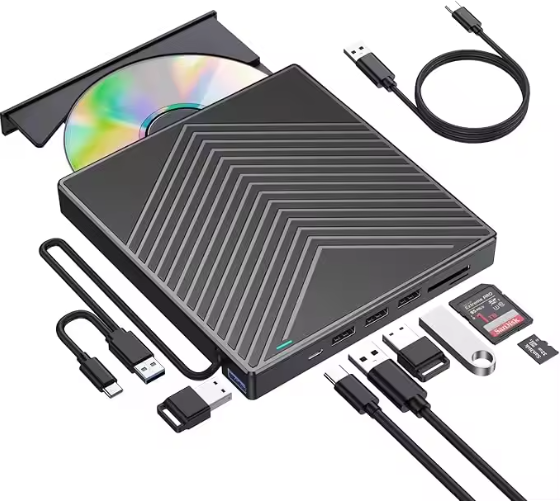
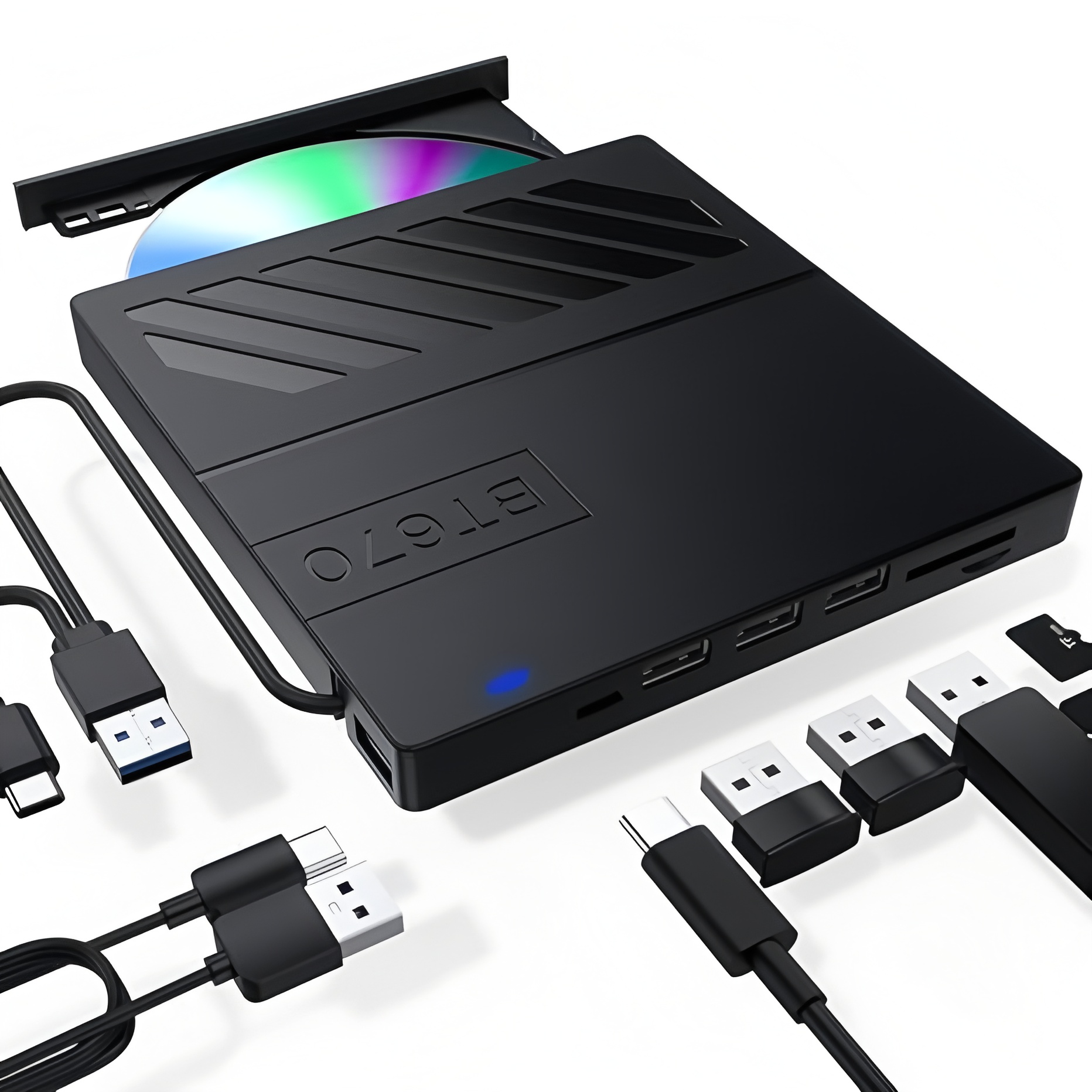
Whether you’re using an Apple USB SuperDrive or a third-party external CD drive, knowing how to safely eject a CD is crucial to avoid damaging the disc or the drive itself. In this guide, we’ll walk you through the most reliable methods to eject CD from Mac external drive, covering both regular and troubleshooting scenarios.
Regular Methods to Eject CD from Mac External Drive
These straightforward methods work for most cases when your external CD drive is functioning normally. They are easy to operate and require no technical expertise.
1. Use the Eject Button or Keyboard Shortcut
Many external CD drives come with a physical eject button – simply press this button, and the CD tray will slide out if the drive is properly connected and the disc is not in use. If your external CD drive doesn’t have a physical button, you can use Mac’s keyboard shortcuts:
Regular Methods to Eject CD from Mac External Drive
These straightforward methods work for most cases when your external CD drive is functioning normally. They are easy to operate and require no technical expertise.
1. Use the Eject Button or Keyboard Shortcut
Many external CD drives come with a physical eject button – simply press this button, and the CD tray will slide out if the drive is properly connected and the disc is not in use. If your external CD drive doesn’t have a physical button, you can use Mac’s keyboard shortcuts:
- Press the dedicated Eject key (⏏) on your Mac keyboard (usually located in the top-right corner). This works for most external CD drives connected to your Mac.
- If the Eject key doesn’t work, press and hold the F12 key until the CD is ejected. This is a common alternative for third-party external CD drives.
- Select the CD icon on your desktop or in the Finder, then press Command (⌘) + E. This keyboard shortcut is a universal way to eject removable media on Mac, including CDs from external drives.

2. Eject via Finder
The Finder is Mac’s default file management tool, and it provides a simple way to eject CDs from external drives:
Troubleshooting: What to Do If the CD Won’t Eject from External Drive
Sometimes, you may encounter issues where the CD won’t eject – this could be because the disc is in use by an app, the drive is unresponsive, or there’s a minor software glitch. Here are the solutions to fix this:
1. Close Apps Using the CD
If an app is currently accessing files on the CD (such as a media player, photo viewer, or document editor), the external CD drive will lock the disc to prevent data corruption. Close all such apps first, then try ejecting the CD again using one of the regular methods above. If you’re not sure which app is using the CD, you can force-quit unresponsive apps via the Force Quit menu (press Command + Option + Esc).
2. Restart Your Mac While Holding the Mouse/Trackpad Button
This is a reliable trick to force-eject a stuck CD from an external drive: Go to the Apple menu in the top-left corner of your screen, select “Restart,” and immediately hold down the left mouse button (or trackpad button) as your Mac restarts. Keep holding the button until the CD is ejected. This method works by overriding the normal startup process and prioritizing the ejection of the disc.
3. Use Disk Utility
Disk Utility is a built-in Mac tool that can manage and troubleshoot storage devices, including external CD drives:
If all other methods fail, you can use Terminal to send a direct eject command to the external CD drive. This is recommended for advanced users:
The Finder is Mac’s default file management tool, and it provides a simple way to eject CDs from external drives:
- Click the Finder icon in your Mac’s Dock to open a Finder window.
- In the left sidebar under the “Devices” section, locate the name of your external CD drive (it will show the CD’s label if one is inserted).
- Click the small eject triangle icon next to the drive’s name. The CD will be ejected immediately.
3. Drag and Drop to Trash
This is one of the most intuitive methods for Mac users: Locate the CD icon on your desktop, click and hold it, then drag it to the Trash bin in the Dock. When you release the icon over the Trash, the Trash will temporarily change to an Eject icon, indicating that the CD is being ejected. This method is safe and works for all external CD drives that are recognized by your Mac.
This is one of the most intuitive methods for Mac users: Locate the CD icon on your desktop, click and hold it, then drag it to the Trash bin in the Dock. When you release the icon over the Trash, the Trash will temporarily change to an Eject icon, indicating that the CD is being ejected. This method is safe and works for all external CD drives that are recognized by your Mac.

Troubleshooting: What to Do If the CD Won’t Eject from External Drive
Sometimes, you may encounter issues where the CD won’t eject – this could be because the disc is in use by an app, the drive is unresponsive, or there’s a minor software glitch. Here are the solutions to fix this:
1. Close Apps Using the CD
If an app is currently accessing files on the CD (such as a media player, photo viewer, or document editor), the external CD drive will lock the disc to prevent data corruption. Close all such apps first, then try ejecting the CD again using one of the regular methods above. If you’re not sure which app is using the CD, you can force-quit unresponsive apps via the Force Quit menu (press Command + Option + Esc).
2. Restart Your Mac While Holding the Mouse/Trackpad Button
This is a reliable trick to force-eject a stuck CD from an external drive: Go to the Apple menu in the top-left corner of your screen, select “Restart,” and immediately hold down the left mouse button (or trackpad button) as your Mac restarts. Keep holding the button until the CD is ejected. This method works by overriding the normal startup process and prioritizing the ejection of the disc.
3. Use Disk Utility
Disk Utility is a built-in Mac tool that can manage and troubleshoot storage devices, including external CD drives:
- Open Spotlight Search (press Command + Space), type “Disk Utility,” and press Enter to launch the app.
- In the left sidebar, find your external CD drive under the “External” section.
- Select the drive, then click the Eject button (a triangle pointing up) in the top toolbar. Disk Utility will safely eject the CD if possible.
If all other methods fail, you can use Terminal to send a direct eject command to the external CD drive. This is recommended for advanced users:
- Open Spotlight Search, type “Terminal,” and press Enter.
- In the Terminal window, type drutil eject and press Enter. This command will attempt to eject the disc from the default optical drive (your external CD drive, if it’s the only one connected).
- If that doesn’t work, try drutil tray eject instead, which specifically targets tray-style external CD drives.
- Always eject the CD properly before disconnecting the external drive to avoid data loss or drive damage.
- Ensure your external CD drive is compatible with your Mac’s operating system. Some older third-party drives may require updates or additional software to work with the latest macOS versions.
- If your external CD drive is bus-powered (no separate power adapter), connect it directly to your Mac instead of a USB hub to ensure it gets enough power – insufficient power can cause ejection issues.
- You can add an Eject menu to your Mac’s menu bar for quick access: Go to Apple menu > System Settings > CD & DVD (you may need to scroll down), then enable “Show eject button in menu bar.” This is especially useful if you use an external CD drive frequently.
By following these methods, you can easily and safely eject CD from Mac external drive in any situation. Whether you’re using a regular external CD drive or facing a stuck disc, these solutions will help you avoid frustration and protect your devices. If you’re still having issues after trying all these steps, it may be a hardware problem with the external CD drive itself – consider contacting the manufacturer for support.
can external cd drives play games
why is my burned video not playing on dvd